This is my original tutorial, republished on this website. The examples are preserved. Tool versions and interfaces may have changed.
Hummingbot supports nine different trading strategies to jumpstart you into crypto trading. You can choose any of these strategies to monitor markets and make trading decisions. If you want to continue trading with Hummingbot, this article will get you started with Hummingbot’s strategy module and required parameters.
How to create your own strategy
Create a new strategy file and folder.
To create a strategy, download and install Hummingbot. Then navigate to the installation directory and create a new folder inside Hummingbot -> strategy directory. Let’s refer to the directory as new_strategy.Once successful, use your favorite text editor to create the following blank files.
__init__.py
new_strategy_config_map.py,
new_strategy.py and
start.py files
Note: The files should follow {strategy name}.py as a naming convention.Each of these files will serve a specific purpose. Visit our strategy repository in Github to learn more about the file structure and naming conventions for different strategies.Lastly, we must create a template file in humingbot-master/Hummingbot/templates. The template file name follows a convention like the strategy files and folders. Let’s look at these files individually.
Add functionality to the files.
After the files and folders are ready, we will have to add functionalities to the files. We will add the necessary code to the files we created above.
__init__.py
This file initializes your strategy. Copy the following code into the file using a code editor.
# Initializing the project

from .new_strategy import NewStrategy

__all__ = [NewStrategy]
Here, the __all__ field is used to expose the public module, i.e., NewStrategy for use.
NewStrategy_config_map.py
The config map file prompts you to supply config values whenever you call the strategy. It lists the parameters this strategy will require. The naming convention for this file is {strategy_name}_config_map.py. Use the following code in your config map file.
from Hummingbot.client.config.config_var import ConfigVar

NewStrategy_config_map ={
    "strategy":
        ConfigVar(key="strategy",
                  prompt="",
                  default="NewStrategy",
                  ),
    "connector":
        ConfigVar(key="connector",
                  prompt="Enter the name of the exchange >>> ",
                  ),
    "market": ConfigVar(
        key="market",
        prompt="Enter a market trading_pair",
        prompt_on_new=True,
       ),
}
The parameters in this file are mapped as key-value pairs. Each field uses a ConfigVar method to accept parameters. The key parameter identifies the field, while the prompt parameter lets you choose the prompt message. You can also supply validators as parameters to ensure that only accepted values are entered.In the above example, the strategy field identifies the trading strategy - NewStrategy. Similarly, we have used the connector field to prompt for the name of the exchange and the market field to prompt for the pair of coins you want to exchange.
start.py
The start file holds the main program to initialize the configuration and execute the strategy. Copy the following code to get started with your start program.
from Hummingbot.strategy.market_trading_pair_tuple import MarketTradingPairTuple
from Hummingbot.strategy.NewStrategy import NewStrategy
from Hummingbot.strategy.NewStrategy_config_map import NewStrategy_config_map as c_map

def start(self):
    connector = c_map.get("connector").value.lower()
    market = c_map.get("market").value

    self._initialize_markets([(connector, [market])])
    base, quote = market.split("-")
    market_info = MarketTradingPairTuple(self.markets[connector], market, base, quote)
    self.market_trading_pair_tuples = [market_info]

    self.strategy = NewStrategy(market_info)
In the above code, the connector variable stores the exchange name, whereas the market variable stores the name of the pairs of coins. These variables fetch the required value from the config map file we defined in the previous step.Similarly, the MarketTradingPairTuple object accepts the exchange name, the name of the trading pair, the base asset, and the quote asset for your crypto bot as its parameters.We have used all this information to initialize strategy with the NewStrategy object.
NewStrategy.py
This file contains several functions to define the behavior of strategy. The naming convention for this file is {strategy_name.py}. To create your strategy file, copy the following code and paste it into the strategy file.
#!/usr/bin/env python

from decimal import Decimal
import logging

from Hummingbot.strategy.market_trading_pair_tuple import MarketTradingPairTuple
from Hummingbot.logger import HummingbotLogger
from Hummingbot.strategy.strategy_py_base import StrategyPyBase

hws_logger = None

class NewStrategy(StrategyPyBase):

    @classmethod
    def logger(cls) -> HummingbotLogger:
        global hws_logger
        if hws_logger is None:
            hws_logger = logging.getLogger(__name__)
        return hws_logger

    def __init__(self,
                 market_info: MarketTradingPairTuple,
                 ):

        super().__init__()
        self._market_info = market_info
        self._connector_ready = False
        self._bought_eth = False
        self.add_markets([self._exchange])

    def tick(self, timestamp: float):
        if not self._connector_ready:
            self._connector_ready = self._market_info.market
            if not self._connector_ready:
                self.logger().warning(f"{self._market_info.market.name} is not ready. Please wait...")
                return
            else:
                self.logger().warning(f"{self._market_info.market.name} is ready. Trading started")

        if not self._bought_eth:
            mid_price = self._market_info.get_mid_price()
            order_id = self.buy_with_specific_market(self._market_info,
                                                     Decimal("0.005"),
                                                     OrderType.LIMIT,
                                                     mid_price)
            self.logger().info(f"Sumbitted buy order {order_id}")
            self._bought_eth = True


def did_complete_buy_order(self, order_completed_event):
    self.logger().info("Your order has been fulfilled")
    self.logger().info(order_completed_event)
Here, we use StrategyPyBase to inherit the structure. We also create a logger object before adding a constructor to the class.Then, once we successfully initialize the required variables, we define the tick method. This method uses two important methods - get_mid_price and buy_with_specific_market.The get_mid_price method gets the mid-price of the coin and stores it. This method is derived from the MarketTradingPairTuple class. You can check out the MarketTradingPairTuple class for more methods to add to your bot.Similarly, the buy_with_specific_market executes the trade for you. This method is derived from the Strategy_base class. StrategyPyBase also derives from the same class. To learn more about other methods you can use using the class, visit Strategy_base.
conf_NewStrategy_strategy_TEMPLATE.yml
We also need an additional file inside the templates folder of the HummingBot directory. This file is a placeholder for the parameters you will use in the strategy. In the context of this guide, this file will have the following code.
Important: The template file name structure is conf_{strategy_name}_stategy_TEMPLATE.yml.Note: You can use paper money (not real money) to test the bot and its strategy before trading real money/crypto. You can start this by running paper_trade.
What does the Hummingbot UI look like?
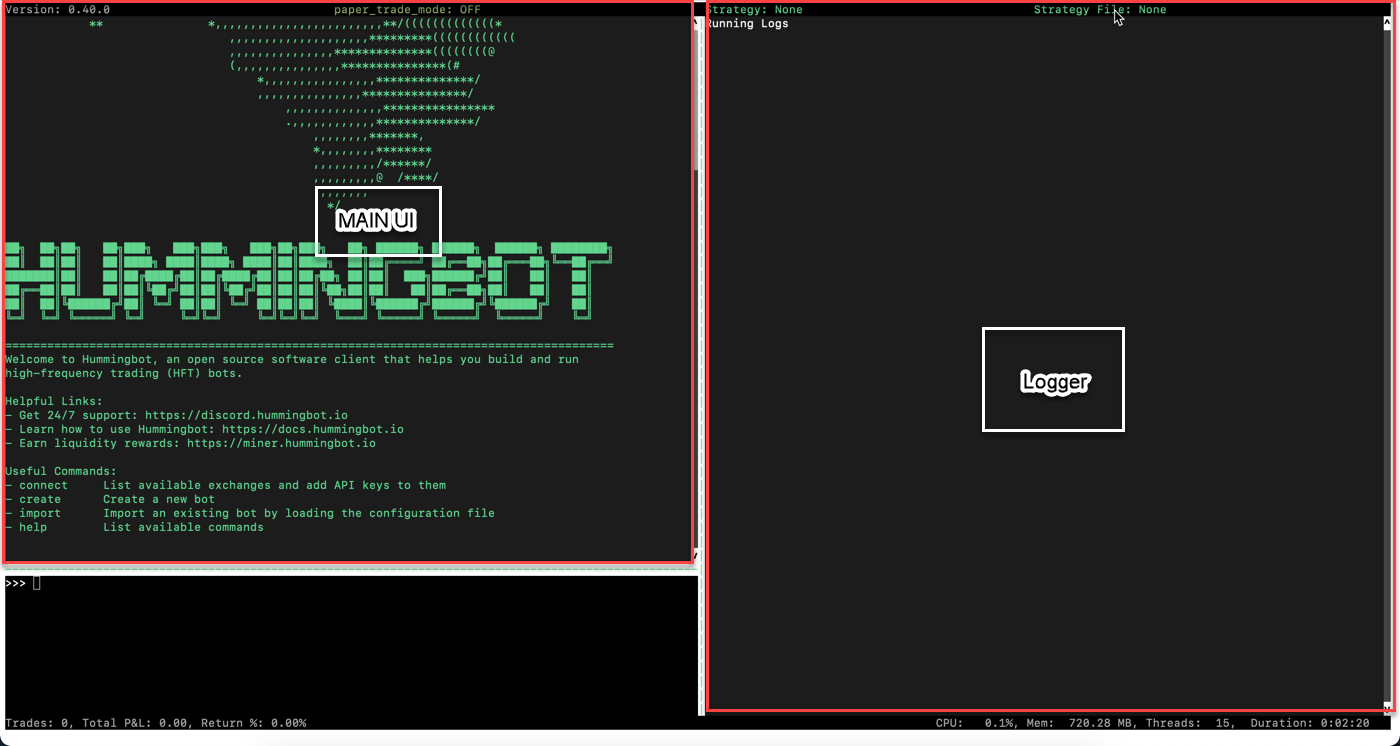
Your Hummingbot UI comprises three sections - the main section, the logger, and the command-line shell. The command-line shell lets you enter commands to your Hummingbot. The main section shows the output, and the logger maintains the log of the run commands.
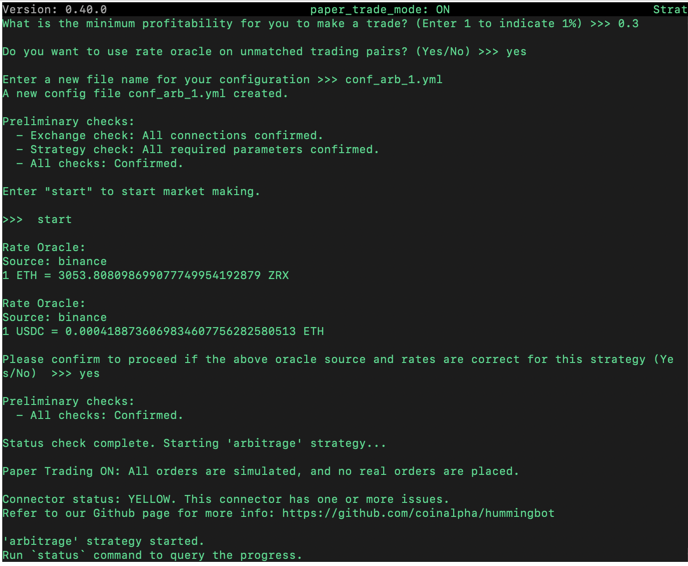
The Main UI
As soon as you start sending commands through the command line shell in Hummingbot, the main UI reacts. It sends you relevant information, including prompt, status, and help information, allowing you to take necessary actions to get started. It also acts as a log of all the commands you have entered via the Hummingbot command shell.To see the progress of your trade, run the status command at any time a trading session is on, and the main UI will display your current trade position.
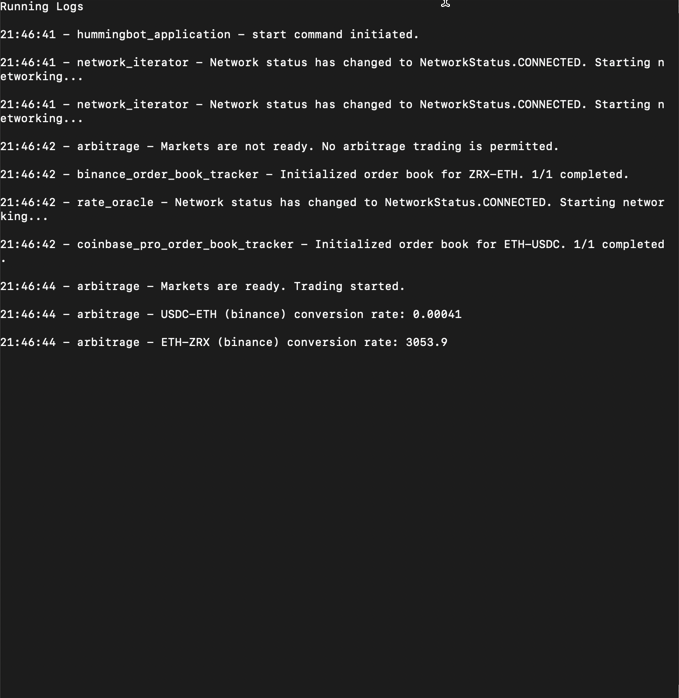
The Logger
As soon as you begin trading, you can see the logger getting populated with trading activity. It shows you information about the trading strategy, including the conversion rate. To see activity in the logger, create a strategy, choose relevant options, and type start in the command shell.
Conclusion
Using this guide, you can create your crypto trading bot and start trading immediately. While this example only explains a basic Hummingbot strategy, it will serve as a starting point for creating your complex trading strategies. To find and learn more about strategies, visit Hummingbot’s Strategy Repository on GitHub.Hummingbot also offers a trading simulator mode to test the bot and its strategies before trading with real assets. This mode can be beneficial if you are a beginner or a professional trader trying out the Hummingbot.So, choose your favorite strategy and start trading with Hummingbot now.
  def notify_hb_app(self, msg: str):
        """
        Method called to display message on the Output Panel(upper left)
        """
        from Hummingbot.client.Hummingbot_application import HummingbotApplication
        HummingbotApplication.main_application()._notify(msg)